
Heroal import settings
The Heroal import settings are specified in more detail below.
A brief description is given in the chapter Heroal article import process.
The Heroal import form is opened via the ingenious main menu -> System -> Heroal Import.
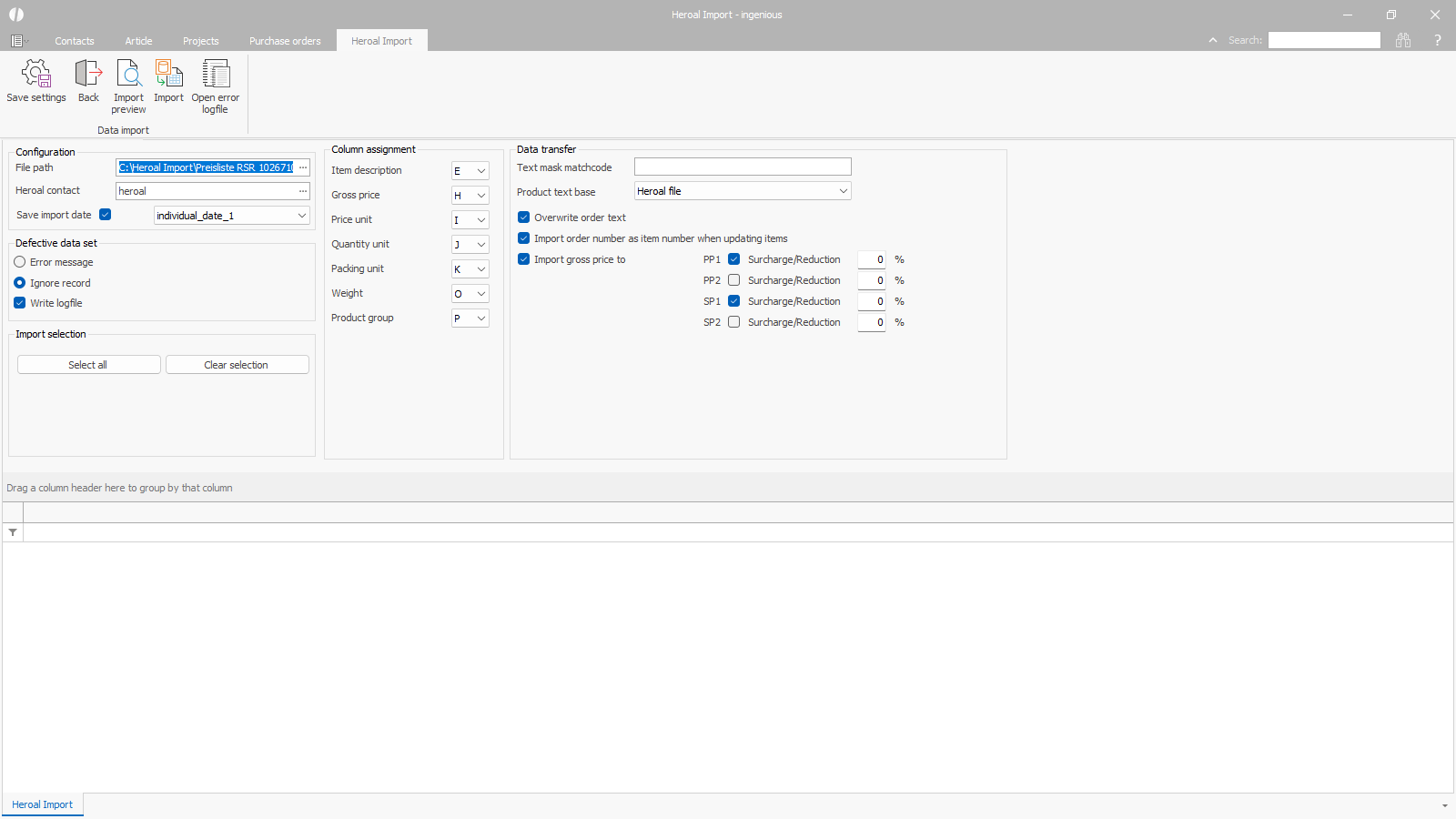 |
| Settings for Heroal article import |
Settings
Configuration
In the Configuration area, basic settings for article import are made.
| File path | Simple input field + button | Specify the complete path of the file containing the items and price information to be imported. The file must be in .csv format. An .xlsx or .xls file must first be converted to a .csv file. The file path can be entered in the field or searched for and imported using the button with the three dots. |
| Heroal contact | Simple input field + button | All imported items are linked to a supplier stored in the ingenious database. The supplier’s matchcode, which corresponds to heroal – Johann Henkenjohann GmbH & Co. KG, must be entered here. Alternatively, the supplier can be selected from the list of all suppliers stored in ingenious using the button with the three dots. |
| Save import date | Checkbox | The import date can be saved in the article data for later analysis. The following field determines in which date field the import date is saved. |
| Field assignment individual date 1 to 5 | Selection list | Specify in which date field of the individual article the import date should be saved. The individual date fields of the articles can be selected. |
Column assignment
The column assignment specifies in which columns of the Excel table (.csv file) the respective data to be imported is located.
The column assignment is predefined and usually does not need to be changed.
Exceptions would be, for example, if order texts (article names) are to be imported in another language.
If the column assignment was accidentally changed, it can be restored for the Excel file “heroal_Pricelist_heroal_RSR_….xlsx” as follows:
| Article name (English) | E |
| Gross price | H |
| Price unit | J |
| Unit of measure | L |
| Packaging unit | M |
| Weight | Q |
| Product group | R |
Data transfer
The data import options determine which details of each data record are transferred to which fields of the ingenious database.
| Text mask matchcode | Simple input field | Every item in the ingenious database requires a unique matchcode to identify it, for example, in orders and purchase orders or in the warehouse. By default, the matchcode is created during import from the Heroal item name with the Heroal order number appended (Heroal item number + color code + variant).
Placeholders can be used to create a different matchcode, which, for example, includes the color name instead of the color code. All possible placeholders are displayed via a tooltip when you hover the mouse over the field. These are: – {Item text} = Item name (order text) from the file as selected during column assignment – {Color} = Name of the color that corresponds to the item’s color code – {Variant} = Code of the Heroal variant according to the file – {Item number} = Heroal item number according to the file |
| Article text basis | Selection list | The article text to be stored in ingenious can be taken from the Heroal order text or created with the same wording as the matchcode. The ingenious article text is used, for example, on project documents sent to customers. |
| Overwrite order text | Checkbox | For items already saved in the database, you can specify here whether their order text should be overwritten with the new information from the price list. |
| Use order number as article number | Checkbox | The ingenious article number is assigned identically to the Heroal order number when a new entry is created. Check this box if the Heroal order number should also be used as the ingenious article number for already saved articles. |
| Import gross price into | Checkbox | Determination of whether the Heroal gross price should be imported. |
| PP1 | Checkbox | PP1 is the standard purchase price in the ingenious software. Typically, the Heroal price is imported into this field. |
| Surcharge / discount % | Simple input field | The prices listed in the Heroal price list are list prices. To import your individual purchase prices, enter the discount granted by Heroal here. Discounts = reductions should be entered with a negative sign. |
| PP2 | Checkbox | The PP2 is an additional EK that can be used for internal processes, such as temporarily storing prices for further calculations. The PP2 is not visible in most installations and is only used for internal processes. |
| Surcharge / discount % | Simple input field | The prices listed in the Heroal price list are list prices. To import the individual purchase prices, enter the discount granted by Heroal here. Discounts = reductions should be entered with a negative sign. |
| SP1 | Checkbox | The SP1 is the standard selling price in the ingenious software. The Heroal gross price can also be imported into this field to calculate the list price for your own customers. |
| Surcharge / discount % | Simple input field | The prices listed in the Heroal price list are list prices. Individual surcharges can be entered to calculate your own sales prices. |
| SP2 | Checkbox | The SP2 is an additional sales price, intended, for example, for a different customer group. The Heroal gross price can also be imported into this field to calculate the list price for your own customers. |
| Surcharge / discount % | Simple input field | The prices listed in the Heroal price list are list prices. Individual surcharges can be entered to calculate your own sales prices. |
Defective data set
The defective data set group defines what should happen if a record cannot be imported.
A possible error case would be, for example, if a price field contains only text instead of a number, e.g. “on request”.
An error message can be displayed for this data record, and the import will then stop at this point.
Or the data record is ignored and the data import continues.
Optionally, a log can be written in which all error messages are collected.
Import selection
Using the import selection buttons, you can select all records shown in the import preview for import at once or deselect the current selection.
To limit the selection to, for example, individual product groups, the filter functions of the list can be used.
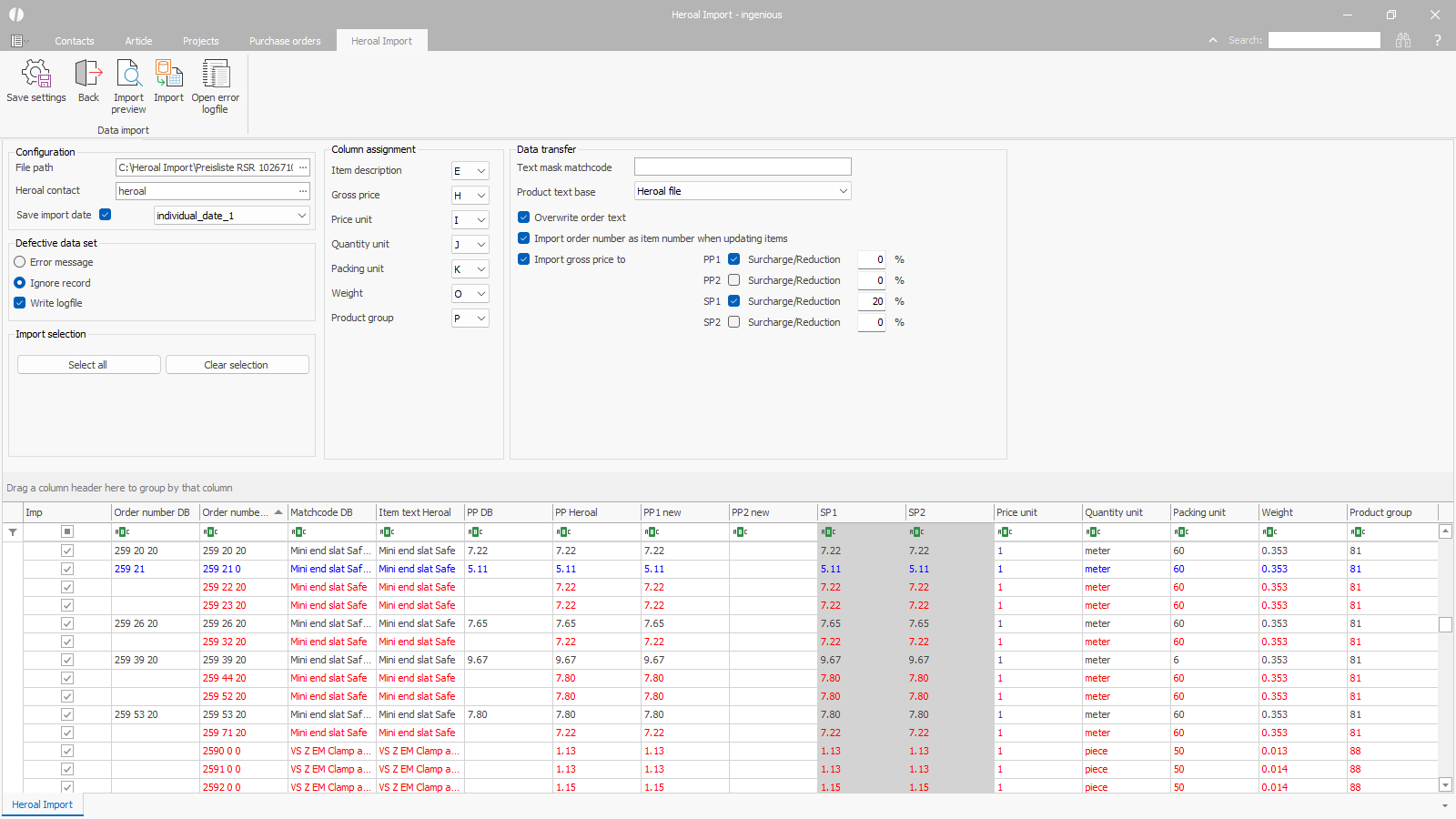 |
| Import selection |
