
Valuelists
Individual values/lists are required at various points in the program.
These include, for example:
- Part list selection lists (colors, types, sizes)
- Printers for specific reports
- Lists of logins that are allowed to perform certain actions
- Various data displayed on websites (links, dropdown values, article selection)
These values are usually stored directly in the part lists, scripts, or on websites, for example.
To edit these value lists, employees need access to the bills of materials / scripts / websites, they need to understand the script logic, and they may cause errors when making changes.
Alternatively, the creation and maintenance of custom value lists can be done in the separate module.
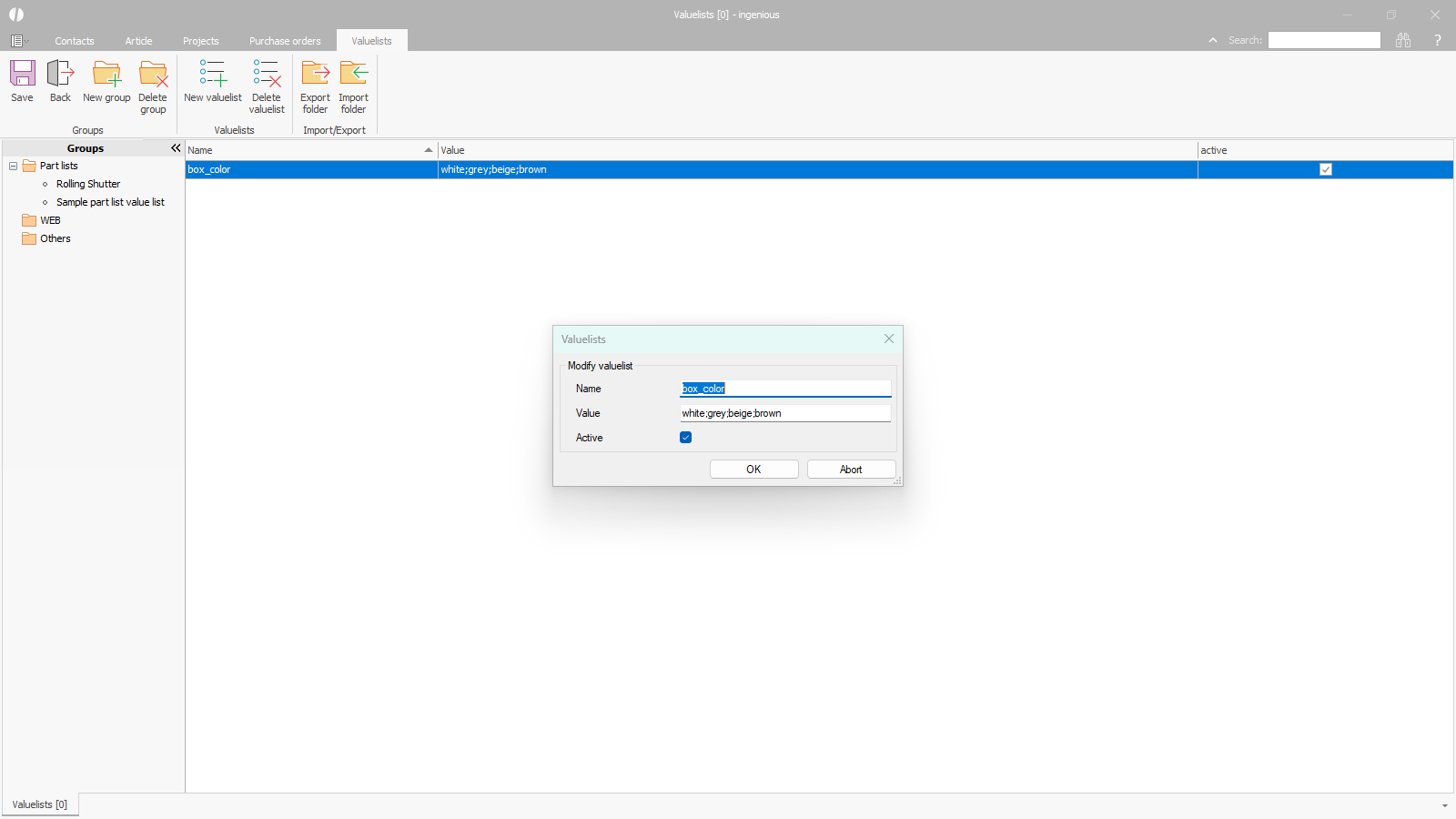 |
| Module Valuelists |
Im Modul stehen die folgenden Funktionen zur Verfügung:
 |
(Ctrl + S) Save changes to the value lists |
 |
(Ctrl + W) Close the Valuelists module |
 |
Create a new (sub)group within the selected main group (Part lists, Web, Others). The names of the subgroups should be unique, e.g. the name of the part list to which the value list is assigned. |
 |
Delete the selected (sub)group. Main groups cannot be deleted. |
 |
Create a new value list within the selected (sub)group |
 |
Delete the selected value list(s). |
 |
Export value lists to a folder (Opens a separate window to select the value list groups to export). |
 |
Import value lists from a folder (Opens a separate window to select the value list groups to import). |
Creating a value list
Clicking the button creates a new valuelist in the curently selected subgroup.
The name should be clearly identifiable, e.g. corresponding to the variable name within the part list.
The values themselves must be entered separated by a semicolon.
Active means that this value list should be used.
Multiple value lists with the same name may exist, but only one of them may be active.
Inactive value lists can be used, for example, to prepare a product changeover without affecting the live system.
Value lists in part lists
In the source code view
In the source code view of a part list, the following method call must first be added to generally access the value lists of the extra module.
The name of the subgroup should be entered instead of the placeholder {NAME SUBFOLDER}.
string[] getValueList(string attribute)
{
return ingenious.net.Moduls.ValueLists.ValueLists.getValueList(“Part lists”,”{NAME SUBFOLDER}”, attribute).Split(‘;’);
}
The executing method can the reference the variable created in the value lists.
string[] arr{VARIABLE} = getValueList(“{VARIABLE}”);
For example, the variable “box_color” in the sample part list “Sample part list value lists” is derrived from
- “Conf_Dropdown(“box_color”, “box_color”, “”, “white”, “white;grey;beige;brown”);”
the appeal
- Conf_Dropdown(“box_color”, “box_color”, “”, “white”, arrbox_color)
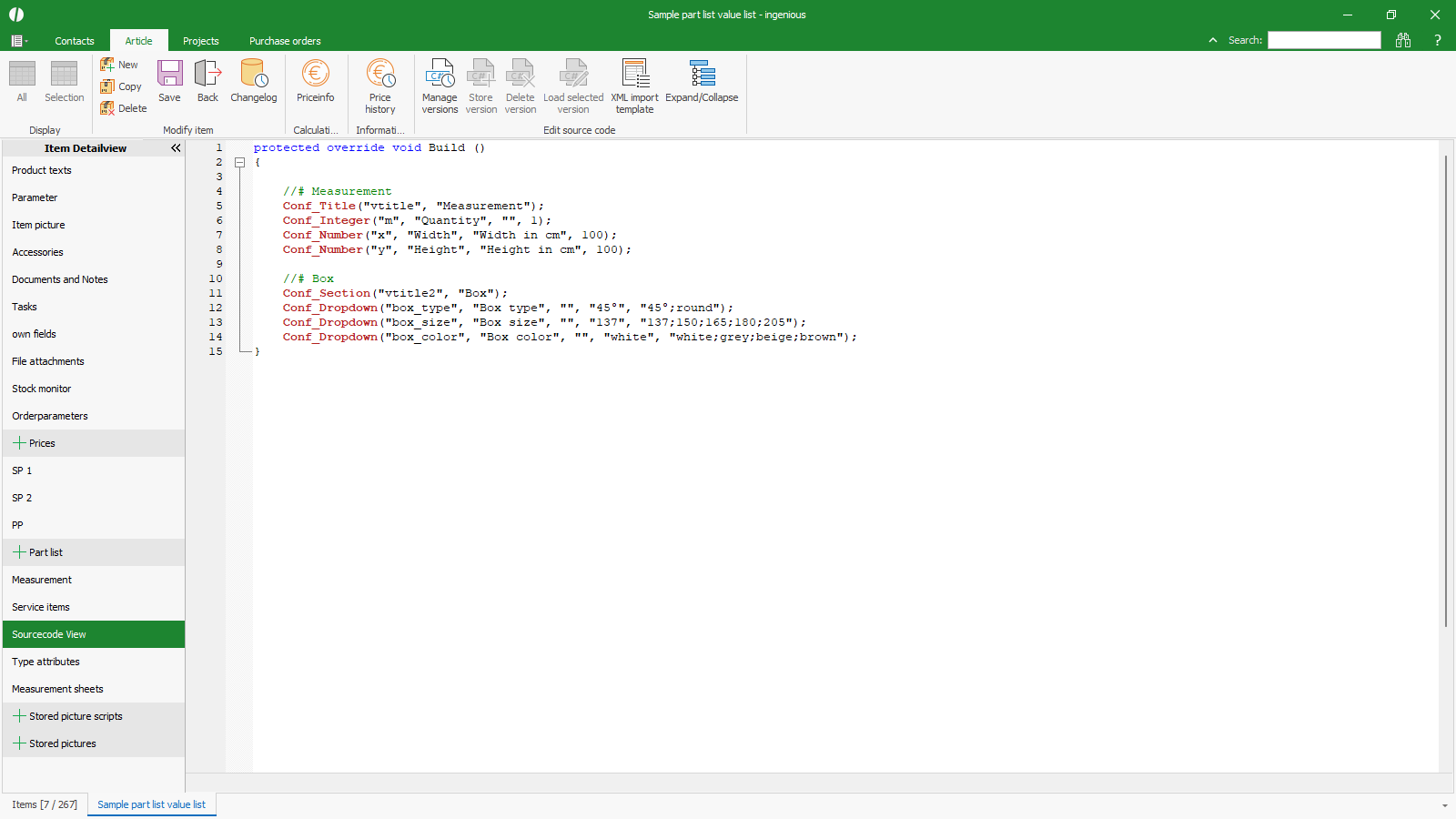 |
| Typical value list in a part list in source code form |
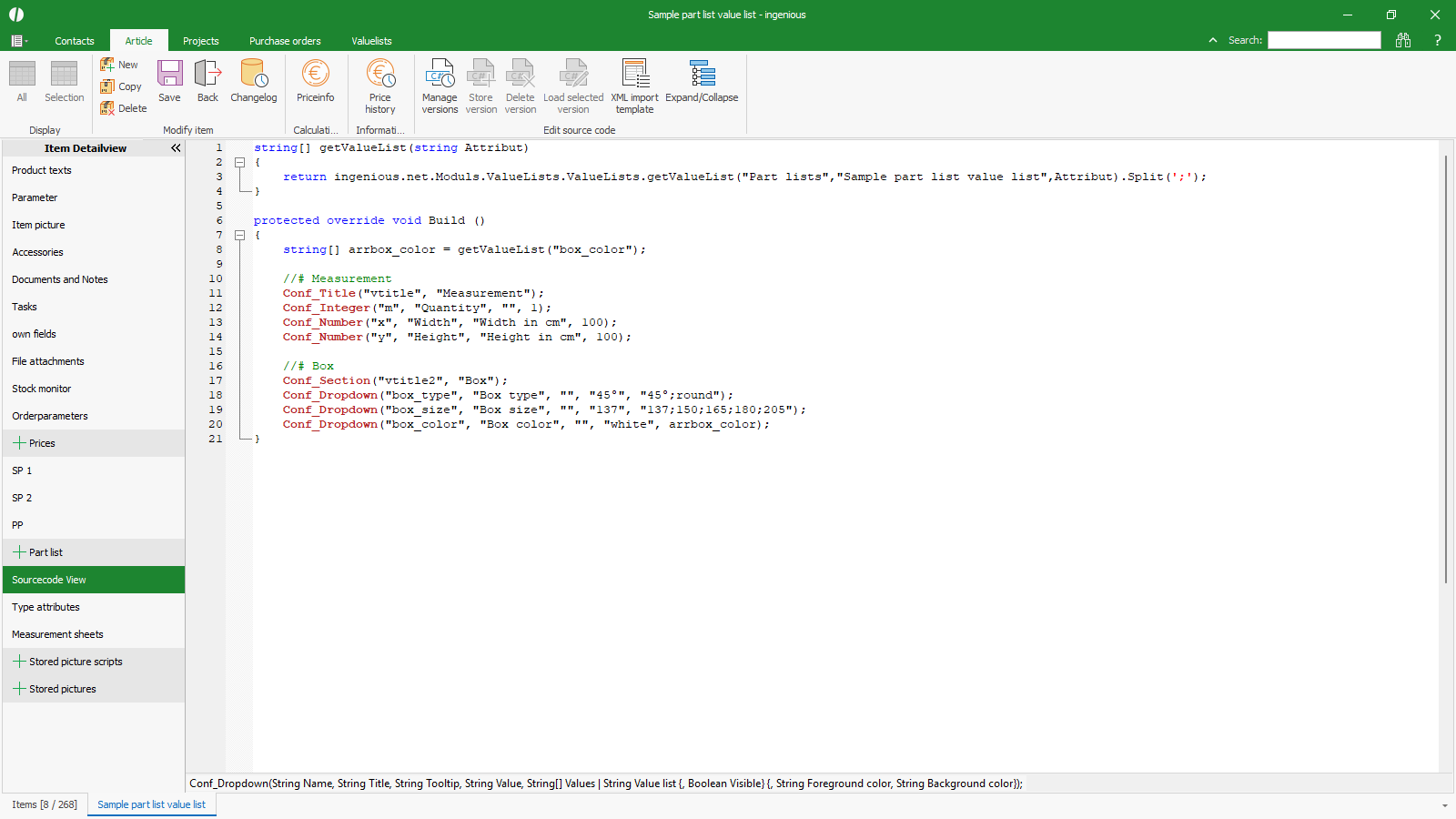 |
| Using an external value list in a part list in source code form |
In tabular form
In a part list in tabular form, the call “DROPDOWN={GetValueList(“NAME SUBFOLDER”;NAME OF VARIABLE)} refers to a value list created in the separate module.
Instead of writing the values directly into the measurment, the contents are retrieved from the value list.
For example, the variable “box_color” in the sample part list “Sample part list value list” is changed from “DROPDOWN = white;grey;beige;brown” to {GetValueList(“Sample part list value list”;box_color)}.
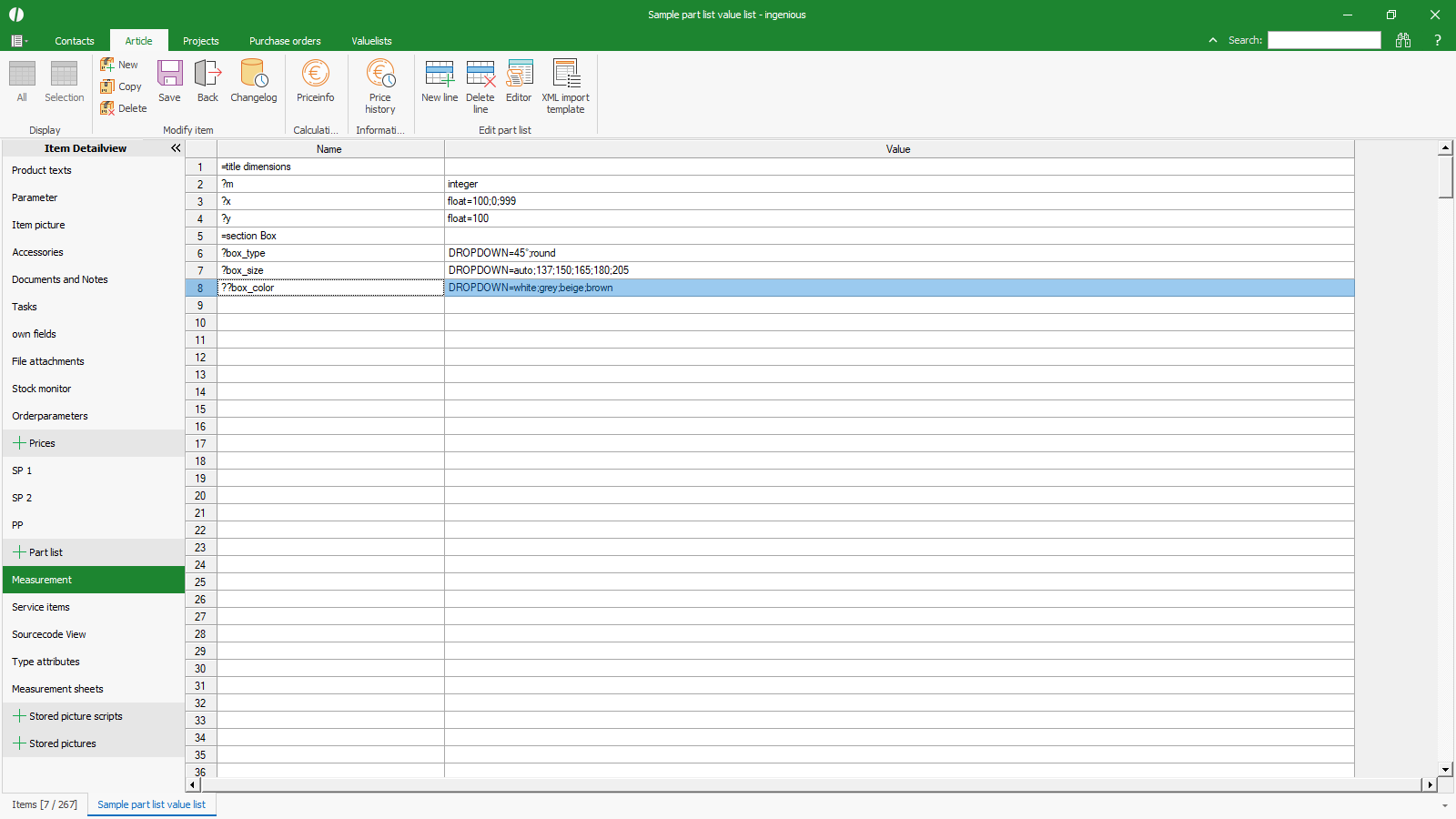 |
| Typical value list in a checklist in tabular form |
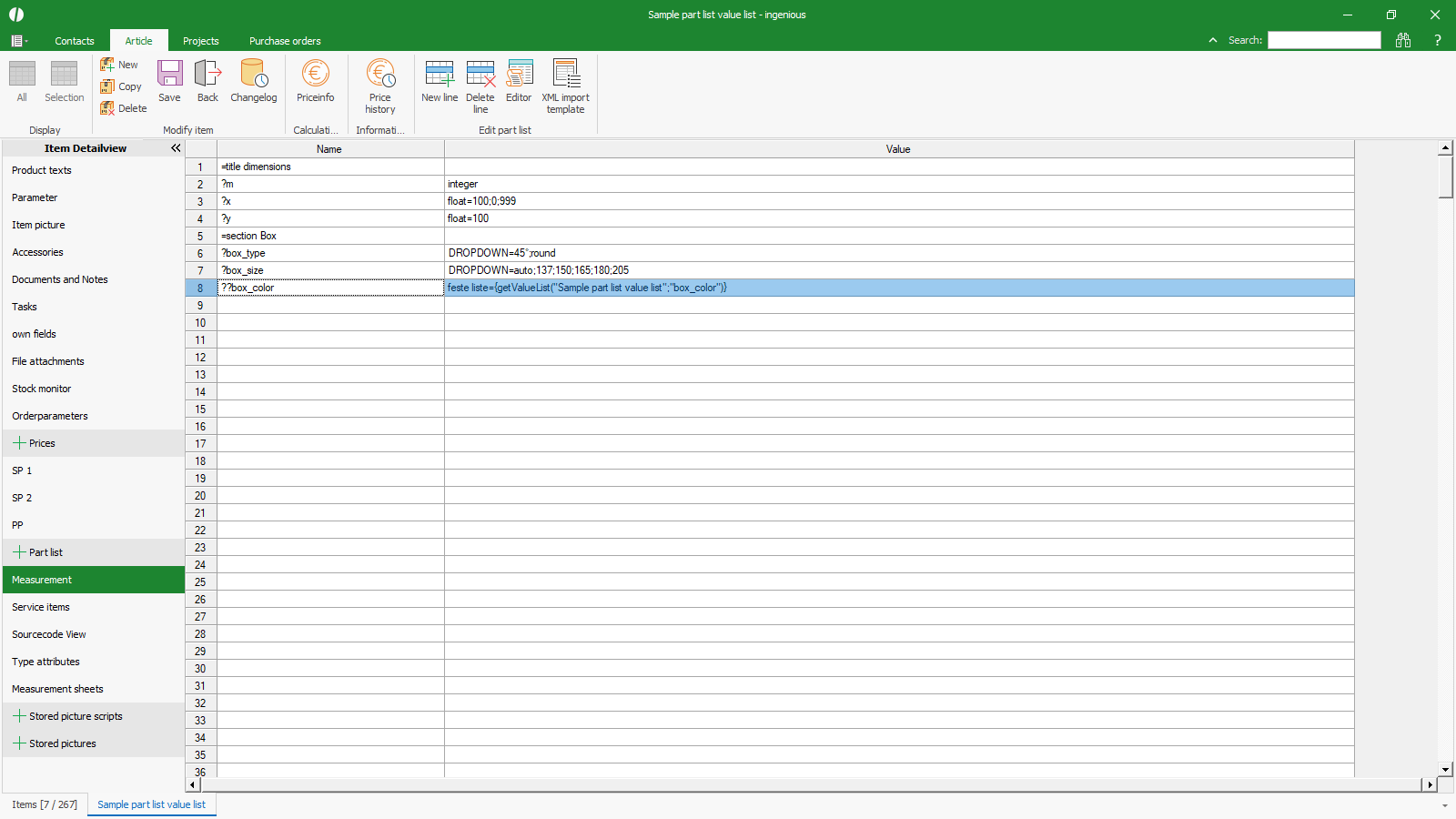 |
| Reference to an external value list in a checklist in tabular form |
